Workcells
All scene data lives in a workcell: systems, cameras, objects, areas, paths, targets and trajectories. The server keeps any number of workcells, and one of them is active. Composer Studio shows nothing until you load a workcell: at startup the viewport and tree are empty and the + buttons are disabled. Load a workcell with Workcell Setup → Load.
Workcells are saved as you go. There is no Save, Import or Export: each change is stored on the server as soon as you confirm it.
Workcell Setup dialog
Click Workcell Setup in the header bar. The dialog lists Available Workcells and shows the Description of the selected one. If the PDK Release Folder does not exist, the dialog does not open; Composer Studio shows an error instead (see Choosing the PDK Release Folder).
Button |
Action |
|---|---|
New |
Create a workcell. Enter a Name and an optional Description, then click Create. The new workcell is selected but not loaded. |
Load |
Make the selected workcell active and show it. |
Delete |
Delete the selected workcell after confirming. This cannot be undone. |
Cancel |
Close the dialog. |
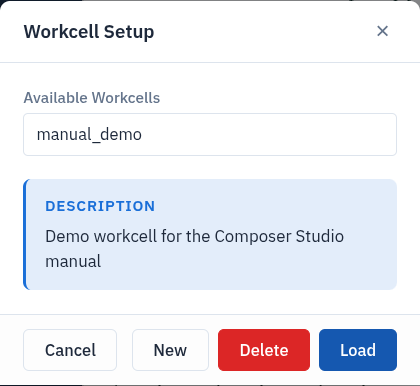
The Workcell Setup dialog.
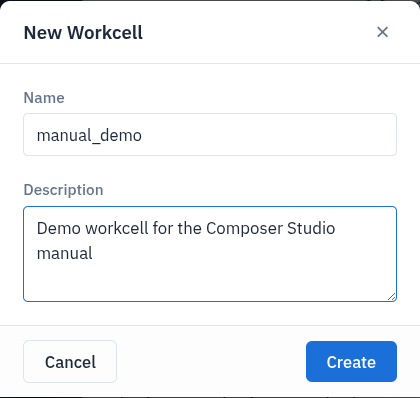
Creating a workcell with New.
What loading shows
Load clears the viewport, then shows the workcell’s systems, scene objects, areas, cameras, paths, targets, PTP trajectories and linear path trajectories. Objects and cameras attached to a robot flange follow that robot.
Loading a workcell disconnects every connected robot (Connect to a Real Robot).
Choosing the PDK Release Folder
The PDK Release Folder tells Composer Studio where the workcell files are (Launch Composer Studio). To browse for it, click the folder button next to PDK Release Folder::
The Select Folder dialog lists the sub-folders of the current path. Click a folder to open it, or click ↑ to go up.
Click Select This Folder. The folder is applied immediately.
Files in the release folder
Composer Studio keeps some workcell files next to the server’s, under
workcell/<workcell name>/ in the PDK Release Folder:
Path |
Holds |
|---|---|
|
Imported |
|
Areas and their meshes. |
|
The server’s model of the scene objects, read when a workcell is loaded. |
|
Output of the mesh filter and of area extraction, before it is moved
into |
|
Motion profiles of PTP trajectories. |
|
Robot models (URDF) of each system. |
|
Copies of the robot and scene URDFs with server paths changed to local paths. Composer Studio writes them next to the originals on each load. |
Custom tools and tool adapters are stored in custom_components/ at the top
of the release folder.
Note
Deleting a scene object or replacing it with a filtered mesh deletes its
mesh files from scene/assets/. Keep your own copy of any mesh you
import.