Build Your First Workcell
This page walks through a first session: it creates a workcell, adds a robot
and a box, saves two robot poses, and plans a point-to-point trajectory between
them. It assumes the PDK server is running and Composer Studio is open in your
browser (Launch Composer Studio). Steps 6 and 7 need the
point_to_point_path license (Activate Licenses).
Nothing on this page moves a real robot.
Step 1: Check the PDK Release Folder
Look at PDK Release Folder: in the header bar. If the field is red or
Composer Studio reported that the path does not exist, click the folder button
and choose the folder that holds your server’s workcell/ directory, then
click Select This Folder. See Launch Composer Studio.
Step 2: Create and load a workcell
Click Workcell Setup in the header bar.
Click New, enter the Name
quickstartand an optional Description, and click Create.quickstartis now selected in Available Workcells. Click Load.
The + buttons in the Scene Navigator become active once a workcell is loaded.
Step 3: Add a robot system
Click + next to Systems. The Setup System form opens.
Enter a system Name, for example
robot_1.On the Manipulator tab, fill in Name (for example
arm), Arm Serial Number and Control Box Serial Number. Use the serial numbers of your robot.Click Create System.
The robot appears in the viewport at the world origin. If the robot is connected to the network, you can fill in the form from the robot instead with Sync from Controller; see Systems.
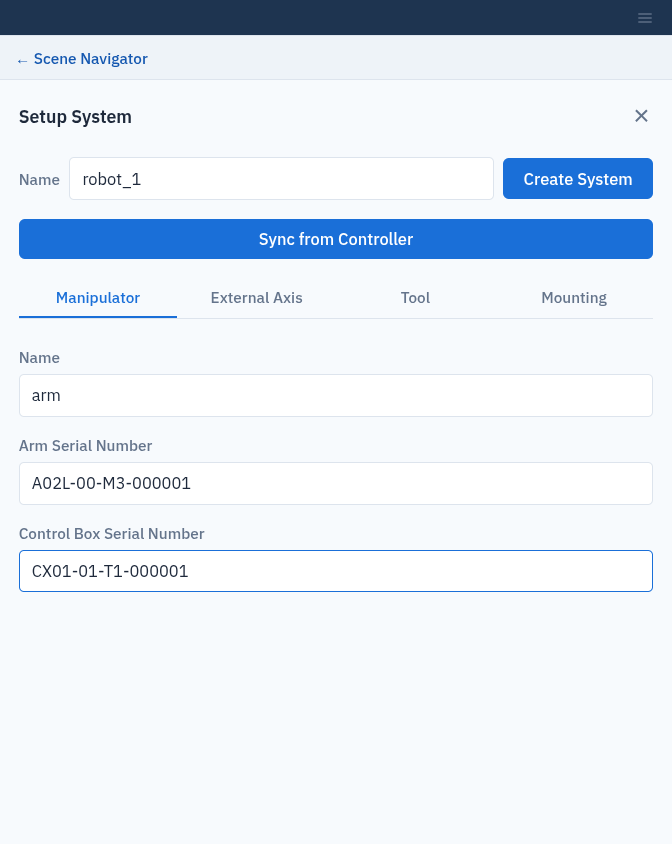
The Setup System form.
Step 4: Add a box
Click ← Scene Navigator to return to the tree, then click + next to Scene Objects.
Enter the Name
box_1and open the Primitive Shapes tab.Leave the size at 0.1 m, and set the pose X to
0.5. A blue wireframe preview shows where the box will go.Click Insert.
Step 5: Save two targets
A target is a saved robot pose.
In the tree, click + next to Targets under robot_1.
Enter the Name
start. On the Joint Space tab, move a few joint sliders. If the pose is in collision or out of reach, Composer Studio shows an error.Click Create Target.
Repeat with the name
endand a different pose.
Step 6: Plan a PTP trajectory
Click + next to PTP Trajectories under robot_1.
Enter the Name
start_to_end.In Available Targets, select
startand click →, then do the same forend.Click Create Trajectory. The button shows Solving… while the server plans a collision-free motion.
Step 7: Play it back
Under robot_1, click ▶ next to PTP Trajectories, click
start_to_endand open the Operations tab.Click Visualize Trajectory. The robot in the viewport moves from
starttoend. Drag the Playback slider to scrub through the motion.
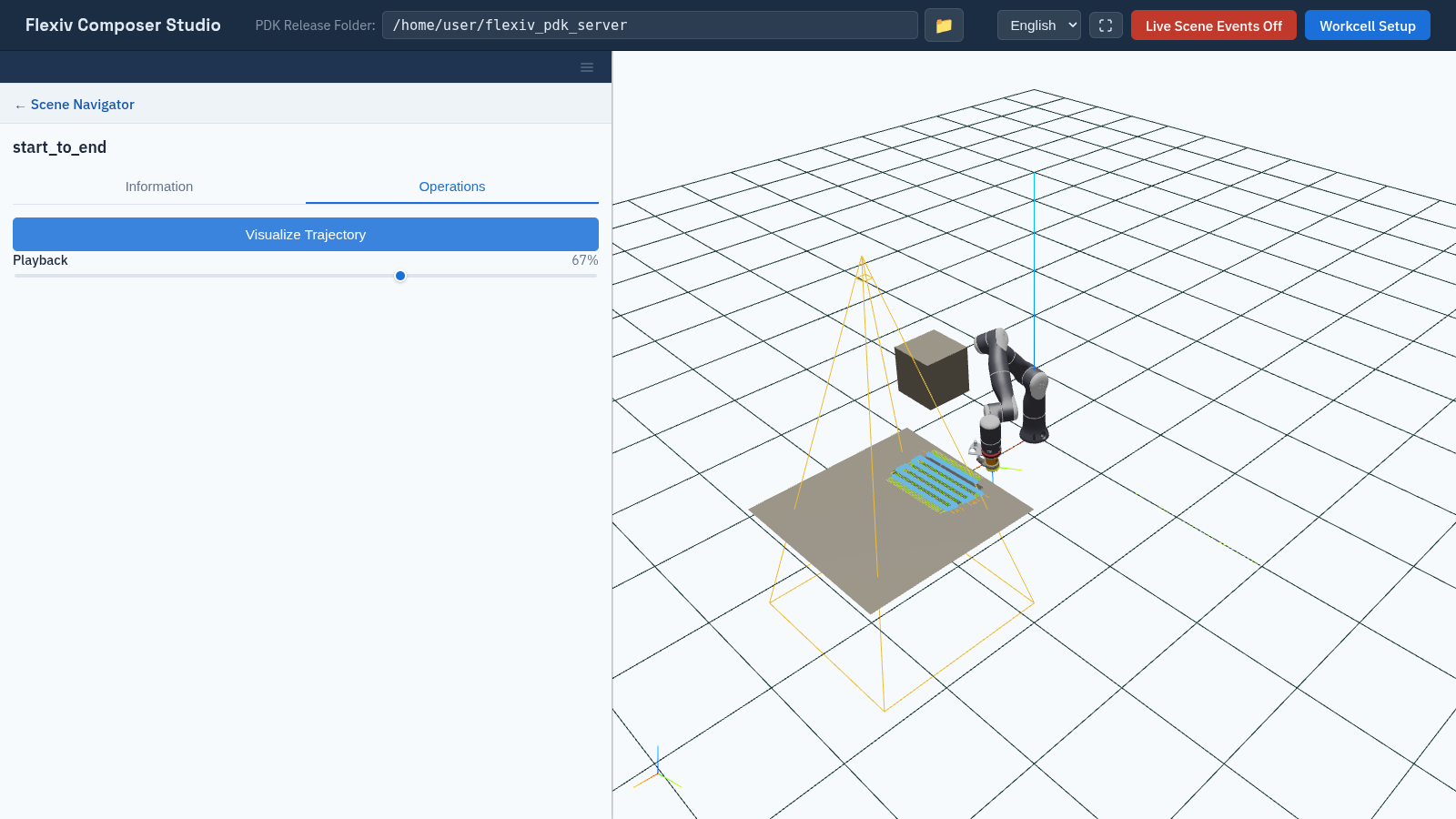
The finished PTP trajectory, played back in the viewport.
Next steps
Take the tour in Interface Overview.
Import a mesh and draw a tool path on it: Scene Objects, Areas and Tool Paths.
Check what you built from a terminal:
pdk-scene workcell list
pdk-scene object list