Activate Licenses
Most of Composer Studio works without a license. Three PDK services need a per-feature license on the server, and these Composer Studio features use them:
License code |
Composer Studio features |
|---|---|
|
|
|
|
|
Areas and the mesh filter (Scene Objects) |
How licenses work
A license is bound to the TPM 2.0 security chip of the computer running the PDK server. It cannot be copied to another machine.
Installing a license takes effect immediately. No restart is needed.
Without a license, the features above fail with a message ending in
(code: 5); everything else works normally.
Open the License Manager
Click the ☰ (More setup) button at the top of the left column and choose License Manager. The License Manager does not need a loaded workcell. The ☰ button is disabled while live scene events are on (Live Scene Events).
Status tab
The Status tab shows:
Device Identifier: this server’s identifier, which Flexiv needs to issue a license.
Hardware Verifiable and Security Chip (TPM): whether the server can read its security chip.
Warnings, if the server reports any.
One block per installed license: License ID, Customer, Issued, Expires, Services, Hardware Verified and Notes. If there are none, it shows No licenses installed on this computer.
Click Refresh to read the status again.
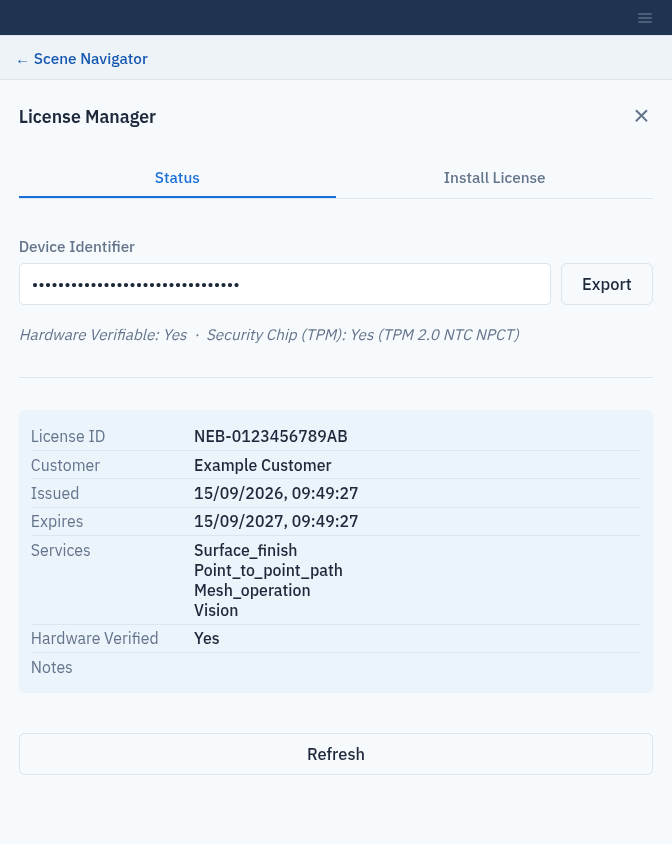
The Status tab of the License Manager. The device identifier is hidden here.
Buying and installing a license
On the Status tab, click Export next to Device Identifier. Your browser asks where to save
license_identifier.txt, or downloads it. Email this file to Flexiv.When Flexiv sends back a
.licfile, open the Install License tab.Click Choose File and select the
.licfile.Click Install License. On success, Composer Studio shows License installed. Newly licensed: followed by the services’ internal names, such as
LICENSED_SERVICE_SURFACE_FINISH, and returns to the Status tab.
The license file is read by your browser and sent to the server, so it can be on the computer you are browsing from.
You can do the same from a terminal with the pdk-scene tool:
pdk-scene license identifier             # writes license_identifier.txt
pdk-scene license install -f NEB-2026-0042.lic
pdk-scene license status