Interface Overview
Layout
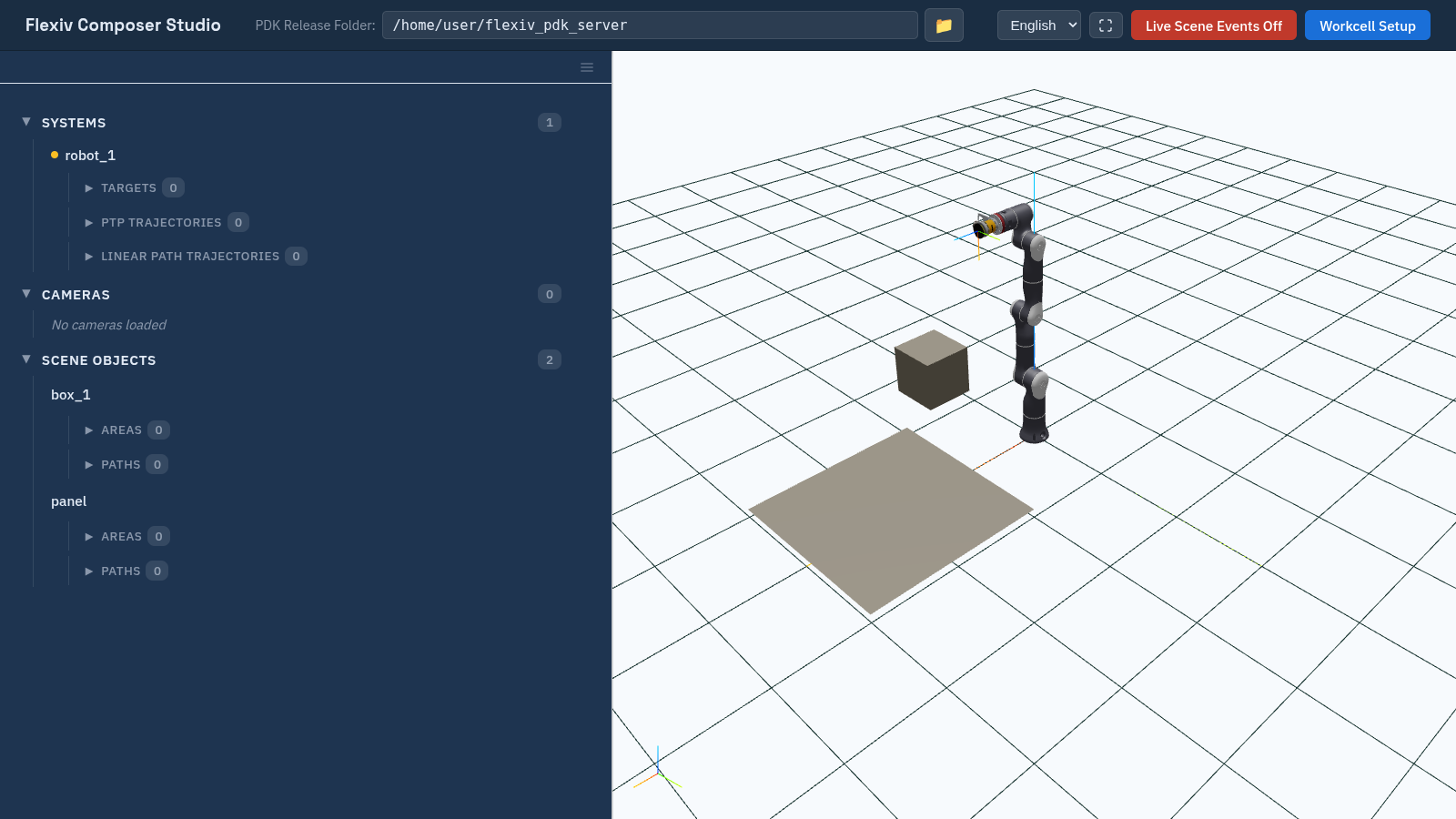
Composer Studio with a workcell loaded: the Scene Navigator on the left, the 3D viewport on the right.
The header bar runs across the top. Below it, the left column holds the Scene Navigator tree or the details of the selected item, and the right column holds the 3D viewport.
Header bar
Control |
Use |
|---|---|
PDK Release Folder: |
The folder holding the server’s workcell files. Type a path and press Enter, or click the folder button to browse. See Launch Composer Studio. |
Language |
English or 中文. The choice resets to English when you reload the page. |
Full screen |
Enter or exit browser full screen. |
Live Scene Events Off / On |
Follow changes made to the scene by other programs. See Live Scene Events. |
Workcell Setup |
Create, load and delete workcells. See Workcells. |
Left column
The left column shows either the Scene Navigator tree or the details of one item, never both.
Click an item in the tree to open its details. Click ← Scene Navigator at the top to go back.
The ☰ (More setup) button opens workcell-wide tools: Collision Configs (Collision Configurations), Custom Components (Custom Components) and License Manager (Activate Licenses). It is disabled while live scene events are on (Live Scene Events).
Drag the bar between the two columns to resize them.
Details panel
Each item’s details are split into tabs, such as Information, Setup, Position and Operations. Which tabs appear depends on the item type, and each is described on that item’s page.
Viewport
The viewport shows the workcell in 3D, with Z up, a 10 m × 10 m floor grid with 0.5 m squares, and the world axes at the origin (X red, Y green, Z blue).
Action |
Result |
|---|---|
Left-drag |
Orbit around the scene. |
Right-drag |
Pan. |
Wheel |
Zoom (1 m to 30 m from the focus point). |
Double-click on an object |
Place a point, only while drawing an area or sketching a path. |
Right-click |
Choose the TCP drag mode, only while dragging a TCP (Targets). |
Clicking an object in the viewport does not select it; select items in the tree. The small axes in the bottom-left corner show which way the view faces.
What the viewport draws:
Robots, scene objects and areas, at their poses.
Cameras as orange wireframe pyramids, showing their field of view.
Paths as a line with a small axes frame at each pose, shown when the path is selected.
A small axes frame at the TCP of each robot that is connected (Connect to a Real Robot).
The selected area, camera or path highlighted in blue.
Messages
Short messages appear at the top of the window and close after a few seconds: ✓ success, ✕ error, ⚠ warning, ℹ information. Click a message to close it early. Questions that need an answer, such as delete confirmations, open as a dialog with Cancel and OK.