Custom Components
When your tool or tool adapter is not in the server’s component catalogue, define it as a custom component. Custom components then appear in the Manufacturer and Model lists of the Tool tab when you set up a system (Systems).
Open the editor with ☰ (More setup) → Custom Components. It has two tabs, Tool Adapter and Tool, each listing the saved components with their Manufacturer and Model.
Add a tool adapter
A tool adapter sits between the robot flange and the tool. It has one or more flanges where a tool can be mounted.
On the Tool Adapter tab, click Add Tool Adapter.
Enter the Manufacturer (for example
Flexiv) and Model.Under Flange Pose, enter the pose of the tool-side flange relative to the robot flange: X (m), Y (m), Z (m), Roll (deg), Pitch (deg), Yaw (deg). Click Add Flange for each further flange. With more than one flange, click Remove Flange to delete one.
Under Visual Mesh and Collision Mesh, click Select File and choose the
.objor.stlfiles. The collision mesh is used as its convex hull, so a concave shape is checked as if it were filled in.Check the Preview and click Save.
Add a tool
The Tool tab works the same way, using Add Tool, except that a tool has a single TCP Pose (tool centre point) instead of flange poses.
The preview
The preview is a small 3D view you can orbit, zoom and pan. It draws:
the visual mesh;
the collision mesh, as an orange see-through wireframe;
the world frame;
one labelled frame per pose: Flange 1, Flange 2 and so on, or TCP.
Use it to check that the poses sit where the mesh expects them.
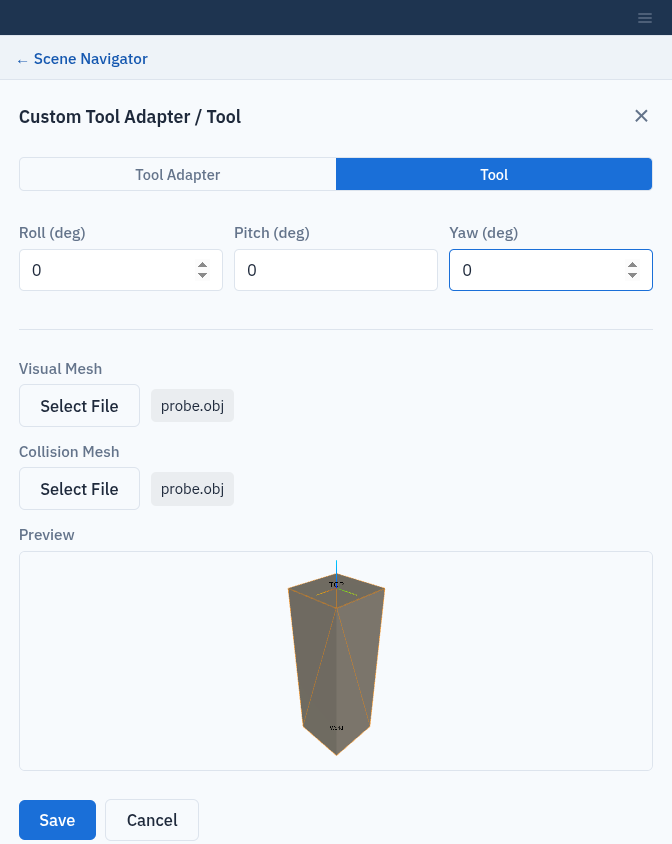
A custom tool with its TCP frame shown in the preview.
Edit or remove a component
To edit, save a new entry with the same Manufacturer and Model. It replaces the old one. The form opens empty, so enter all poses again and select both mesh files again: a mesh you do not select is saved as empty.
To remove, click Remove in the list. If a system uses the component, Composer Studio names the systems and asks you to confirm.
Manufacturer and Model are required (Please specify a manufacturer
and model.). Mesh files are copied to the PDK Release Folder as
custom_components/tools/<Manufacturer>_<Model>/ or
custom_components/tool_adapters/<Manufacturer>_<Model>/, renamed to
visual and collision with their original extension.