Areas
An area is a region cut out of a mesh object, such as the part of a surface to be sanded. A raster tool path can then be generated to cover it (Tool Paths).
Note
Creating an area requires the mesh_operation license
(Activate Licenses). The lines drawn between the points also need
the surface_finish license; without it, the points are shown but not
joined.
Draw an area
In the tree, expand a mesh scene object and click + next to Areas. The object is isolated in the viewport.
Enter a Name.
On the Free draw tab, double-click on the object to place the corners of the area, in order around its outline. Each point is shown as a blue sphere, joined to the previous one along the surface. From the third point on, a closing line back to the first point is shown.
Click Create Area. The button shows Extracting Area… while the server cuts out the region.
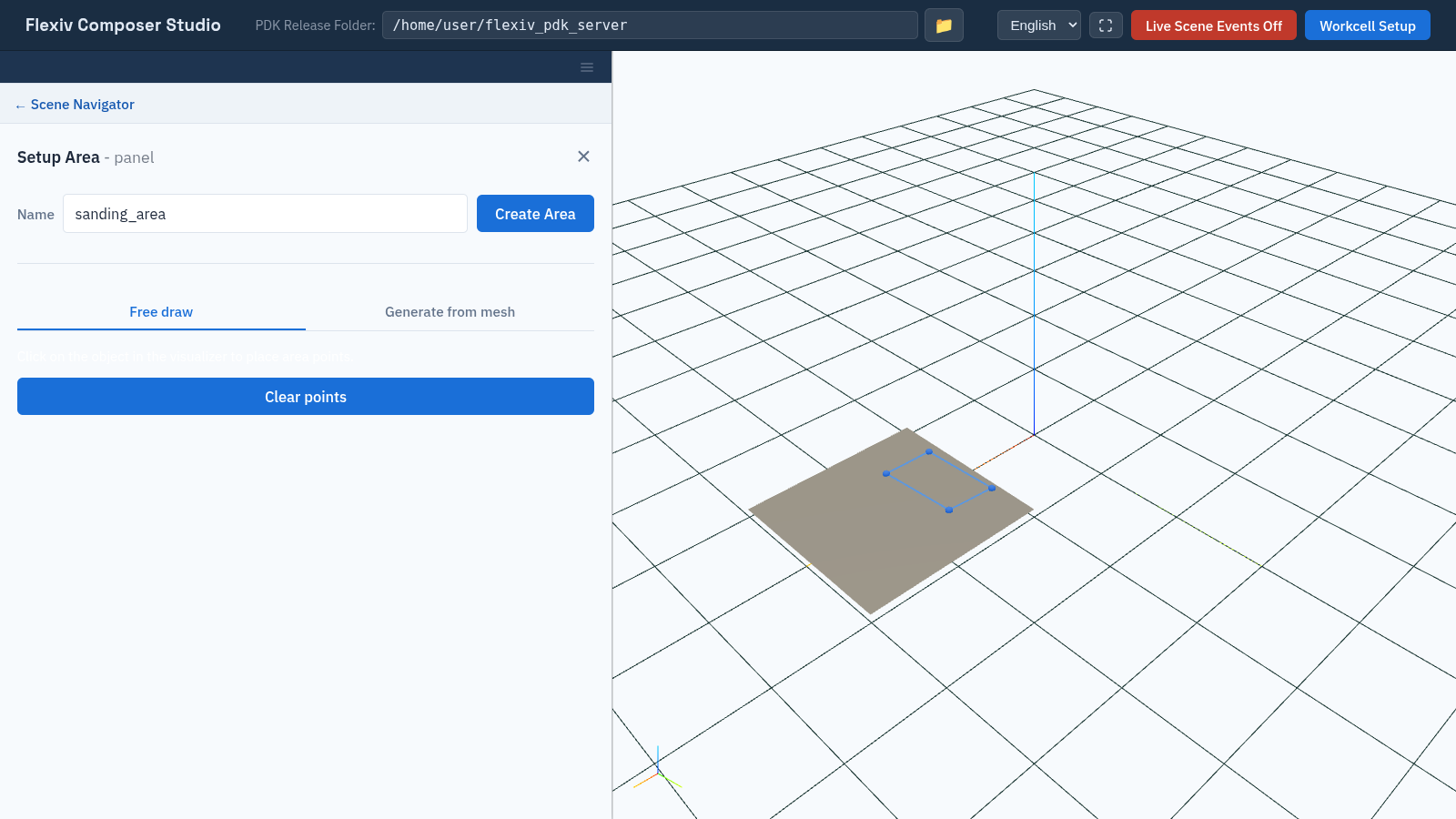
Drawing an area: each double-click places a corner.
The area is listed under the object’s Areas and highlighted in blue when selected. Click Clear points to start the outline again.
An area needs at least three points to enclose a region. With fewer, Create Area shows Place at least 3 points on the object to create an area. If the server rejects the request, for example for a missing license, Composer Studio shows Could not create the area: followed by the reason. In both cases the form stays open with your points, so you can fix the problem and click Create Area again.
Note
The Generate from mesh tab has no options in this release.
Remove an area
Click × next to the area in the tree. Areas are also removed with their scene object.