Scene Objects
Scene objects are the parts, fixtures and obstacles in the workcell. They take part in collision checking, and mesh objects can carry areas and tool paths.
Add a scene object
Click + next to Scene Objects. Enter a Name and choose a Parent:
world: the object stays fixed in the workcell.
system (flange): the object is attached to that robot’s flange and moves with it, for example a part held by a gripper.
Then use one of the two tabs and click Insert.
Use a name that is not already taken. Composer Studio does not check for duplicates: inserting an object with an existing name replaces that object’s mesh and pose.
- Mesh tab
Click Select .obj File and choose a Wavefront
.objfile. If the Name is empty, it is filled in from the file name. If the.objfile uses a material file, a Required .mtl file row appears; click Select .mtl File and choose it. Insert works without it, but the mesh then has no material. Only.objmeshes are supported. Mesh coordinates are read in metres. The mesh is inserted at the parent’s origin; move it afterwards on its Information tab (Move a scene object).- Primitive Shapes tab
Choose the Shape (Box is currently the only one), its Size X (m), Size Y (m) and Size Z (m) (0.1 m each by default), and its pose relative to the parent. A blue wireframe box previews the size and pose as you type.
The mesh files are copied to the PDK Release Folder (Workcells) and
renamed to <Name>.obj and <Name>.mtl.
Note
If the server rejects a mesh, Composer Studio still shows the object in the tree and viewport and gives no message. If an object you inserted is missing after you reload the workcell, check the backend log.
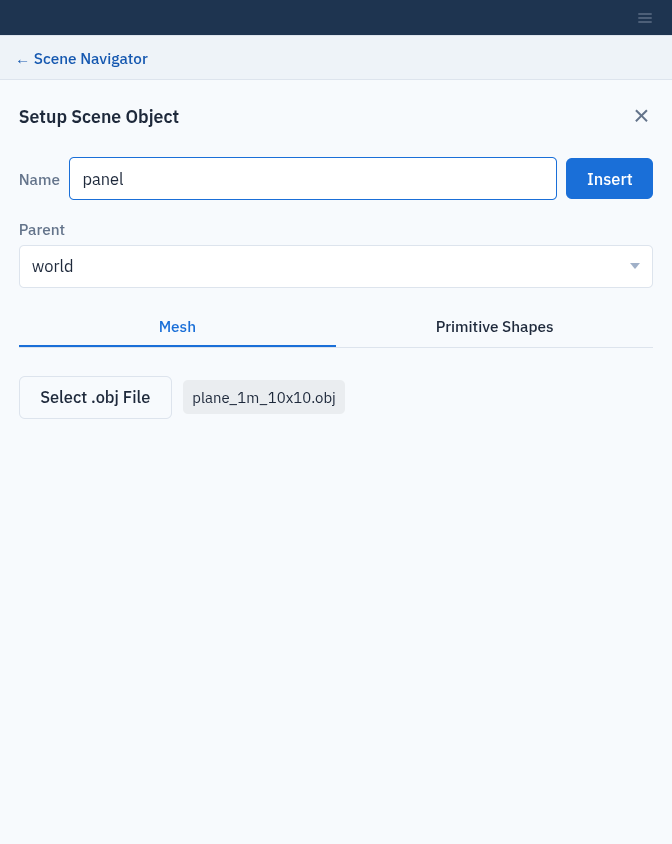
Inserting a mesh from an .obj file.
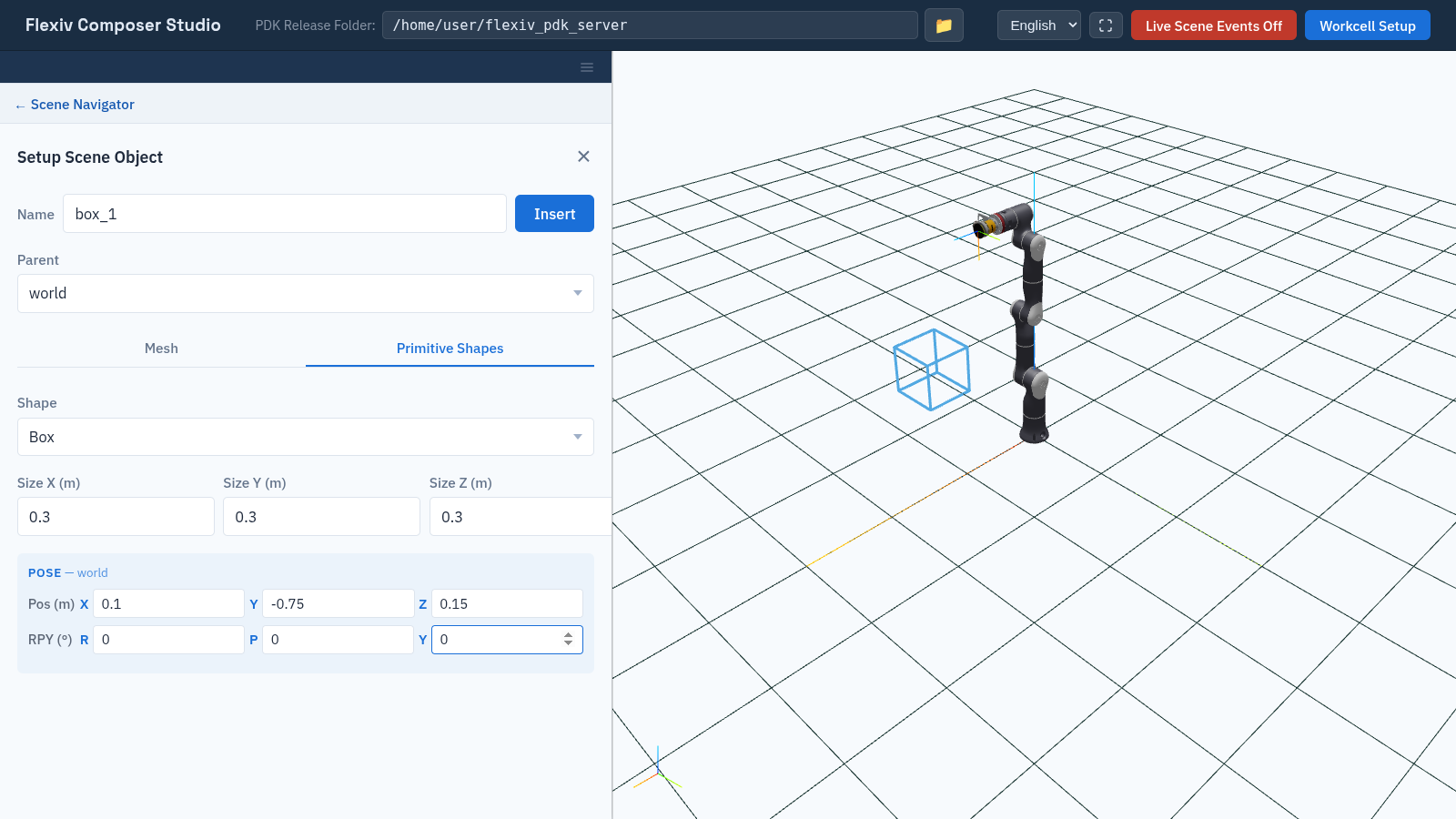
Adding a box on the Primitive Shapes tab; the blue wireframe previews it.
Move a scene object
Select the object and open its Information tab. It shows the Type (Mesh or Primitive) and Parent. Under Pose, edit the position (m) and orientation (RPY, degrees) relative to the parent and click Apply Pose.
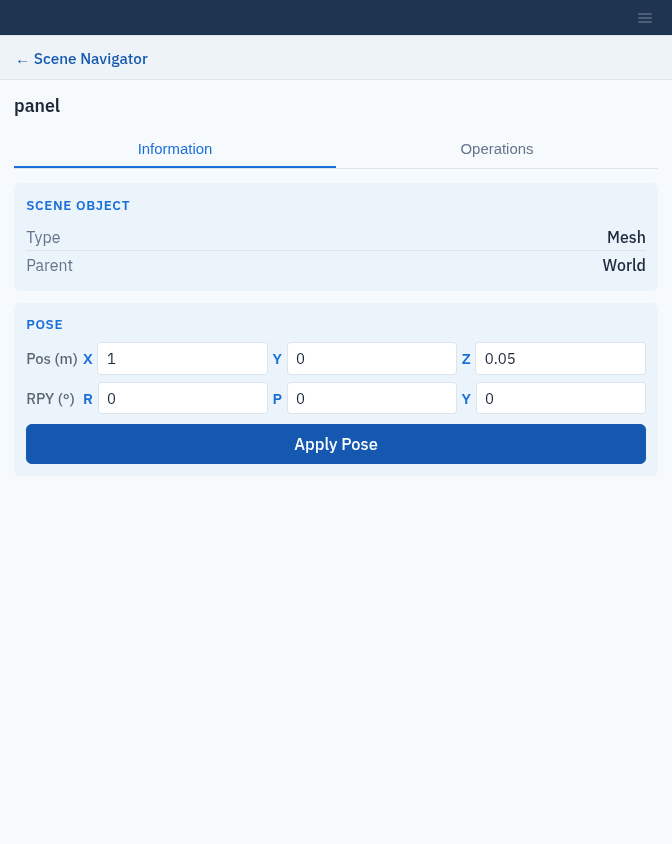
Moving a scene object on its Information tab.
Remove a scene object
Click × next to the object in the tree. This also removes its areas and paths, and deletes its mesh files from the PDK Release Folder.
Mesh filter
Note
The mesh filter requires the mesh_operation license
(Activate Licenses).
The mesh filter cleans up a mesh, for example one reconstructed from a camera. Select a mesh object, open Operations and click Filter Mesh. Choose a Filter Type:
Filter type |
Effect |
Parameters |
|---|---|---|
Smooth Mesh |
Smooths the surface. |
Pass Band (default 0.1), Number of Iterations (default 10). |
Largest Region |
Keeps only the largest connected piece and drops the rest. |
None. |
Bounding Box |
Keeps only the part of the mesh inside a box. |
Center (X, Y, Z), Orientation (RPY, deg), Extents (X, Y, Z) (default 1 each), and Enable Z bound. A blue wireframe shows the box. |
Then click Filter Mesh.
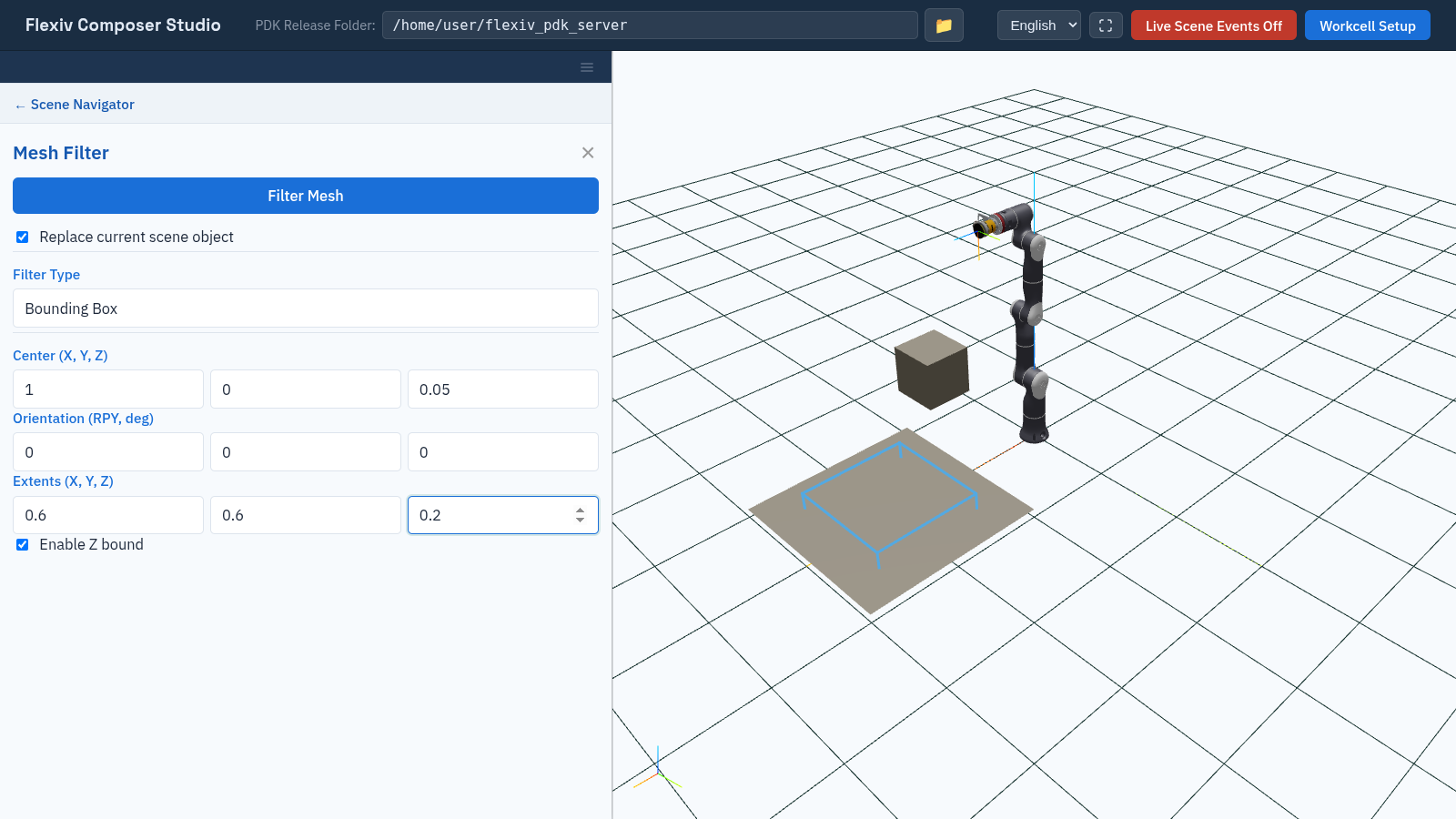
The Bounding Box filter, with its box shown in the viewport.
Important
Replace current scene object is ticked by default. The object’s mesh is
then replaced by the filtered one and the original mesh files are deleted.
Untick it to add the filtered mesh as a new scene object and keep the
original. The new object is named <object>_filtered_<n>, with the
first free number n.