Cameras
A camera in the workcell describes where a 3D camera is mounted and what it sees. Composer Studio draws it as an orange wireframe pyramid, the camera’s view frustum.
Add a camera
Click + next to Cameras, fill in the form and click Create Camera.
Field |
Default |
Meaning |
|---|---|---|
Name |
(required) |
Unique camera name. |
Parent Frame |
world |
world for a fixed camera, or a robot flange for a camera on the arm. |
Pose |
0 |
Position (m) and orientation (RPY, degrees) relative to the parent. |
Camera ID |
(required) |
The camera’s ID on the camera system it belongs to. |
Far Plane Width (m), Far Plane Height (m) |
1, 1 |
Size of the view at the far plane. |
Far Plane Distance (m) |
2 |
Furthest distance the camera sees. |
Near Plane Distance (m) |
0.1 |
Nearest distance the camera sees. |
Depth Scale |
1000 |
Factor that converts the camera’s depth values to metres. |
All fields except the parent and pose are required. If one is empty, Composer Studio shows Please fill in the required fields: followed by the missing fields.
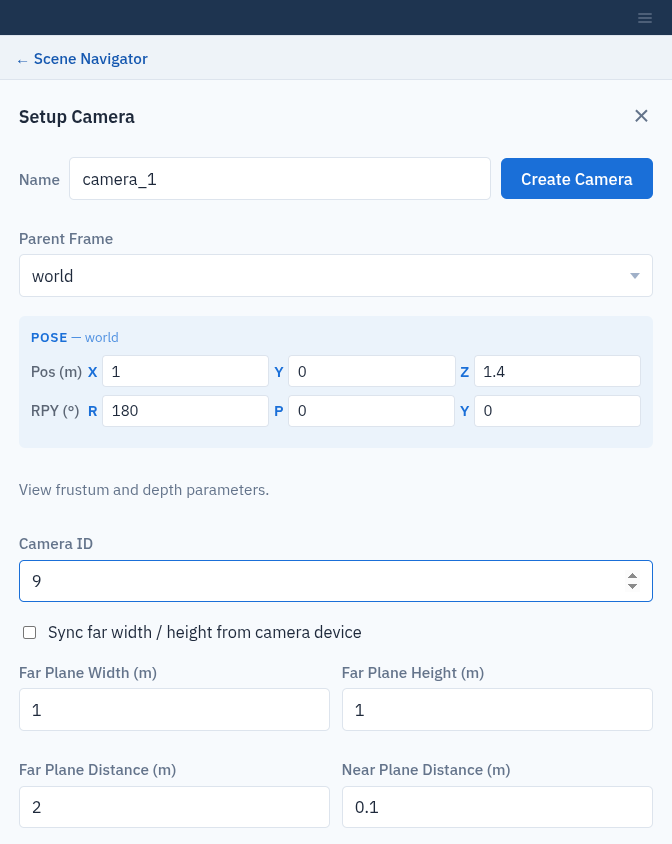
Setup Camera.
Read the view size from the camera
Tick Sync far width / height from camera device to have the far plane width and height read from the real camera after the camera is saved. While it is ticked, Far Plane Width (m) and Far Plane Height (m) cannot be edited. The camera must be online. If it is not, the camera is saved with the values you entered and Composer Studio warns:
Camera "<name>" is not online — far width/height could not be synced.
View, edit or delete a camera
Select the camera in the tree. Information shows its parent, ID, pose and parameters. Setup has the edit form, with Modify Camera and Delete Camera. Operations has no operations for cameras.
Keep the camera Name unchanged when you modify a camera. Modify Camera with a new Name saves a second camera under that name and leaves the old one in place. To rename a camera, delete it and create it again.
Capturing images and point clouds is not available in Composer Studio; use the PDK directly (see the PDK manual’s Cameras and Reconstruction page).
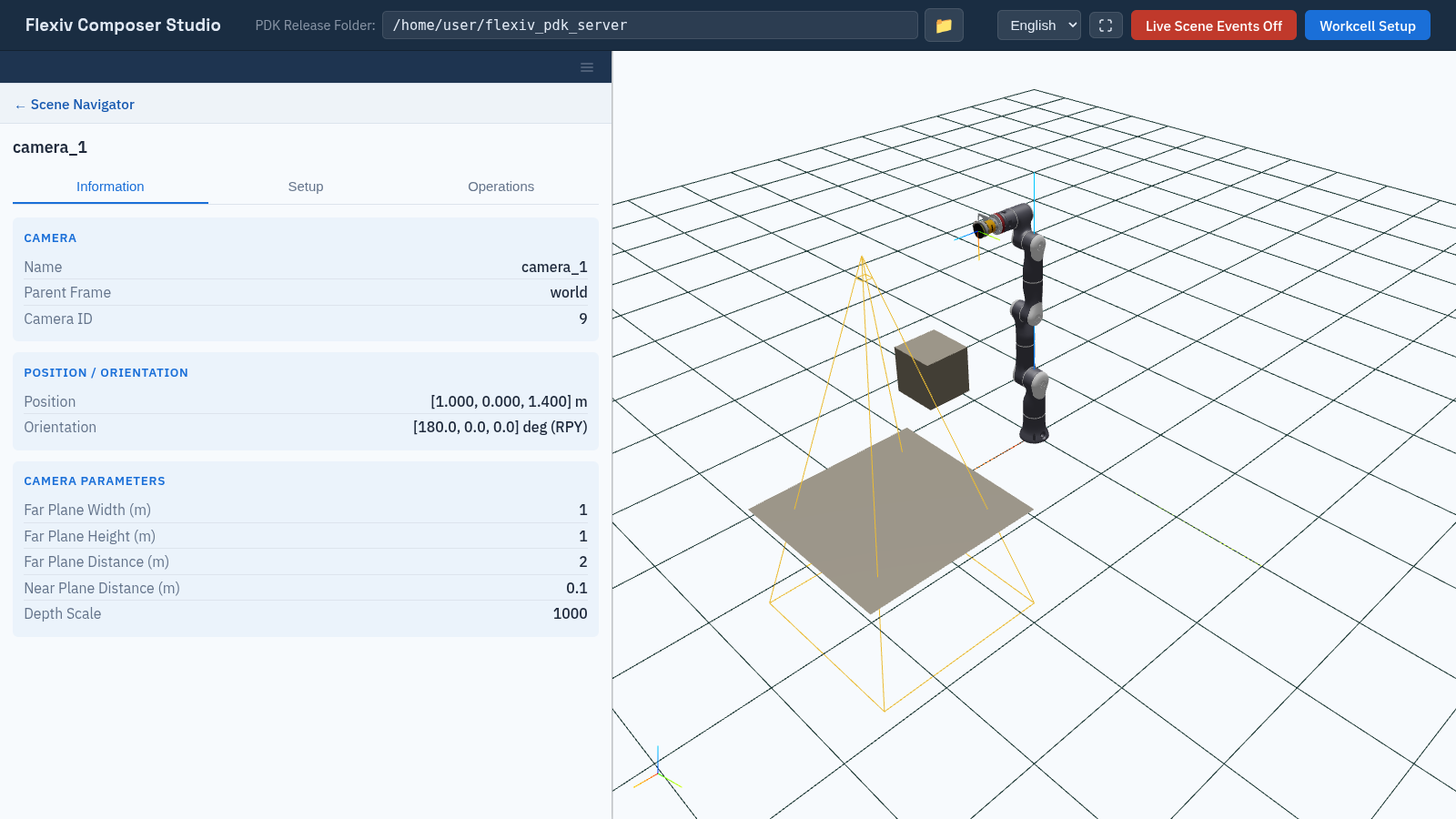
A camera above the work part, drawn as its view frustum.