Systems
A system is one robot setup: a manipulator, plus optionally an external axis, a tool adapter and a tool, mounted somewhere in the workcell. Each system has its own targets and trajectories.
Add a system
Click + next to Systems. The Setup System form opens. Enter the system Name at the top, fill in the tabs below, and click Create System.
Tab |
Fields |
|---|---|
Manipulator |
Name of the arm within the system, Arm Serial Number and Control Box Serial Number. |
External Axis |
Name, Manufacturer and Model of a linear rail or other external axis. Optional. |
Tool → Tool Adapter |
Name, Manufacturer and Model of the adapter between flange and tool. Optional. |
Tool → Tool |
Name, Manufacturer and Model of the tool. Optional. |
Mounting → System Mount |
Position (m) and orientation (RPY, degrees) of the system in the world frame. |
Mounting → Manipulator Mount |
Position and orientation of the manipulator relative to the system mount. |
The Manufacturer and Model lists come from the server’s component catalogue. The Tool and Tool Adapter lists also include any custom components you have defined (Custom Components); the External Axis list does not. The external axis, tool adapter and tool are only added if you give them a Name.
Note
Composer Studio 1.0.0 added a tool adapter named tool_adapter
(Manufacturer Mirka, Model AIROS-adapter) to systems saved with no
tool adapter Name. To remove it from such a system, clear the Name
on the Tool Adapter tab and click Modify System.
- Required fields
System Name, the manipulator Name, Arm Serial Number and Control Box Serial Number. If any is empty, Composer Studio outlines it in red, switches to its tab, and shows Please fill in the required fields: followed by the missing fields.
Each system name must be unique in the workcell.
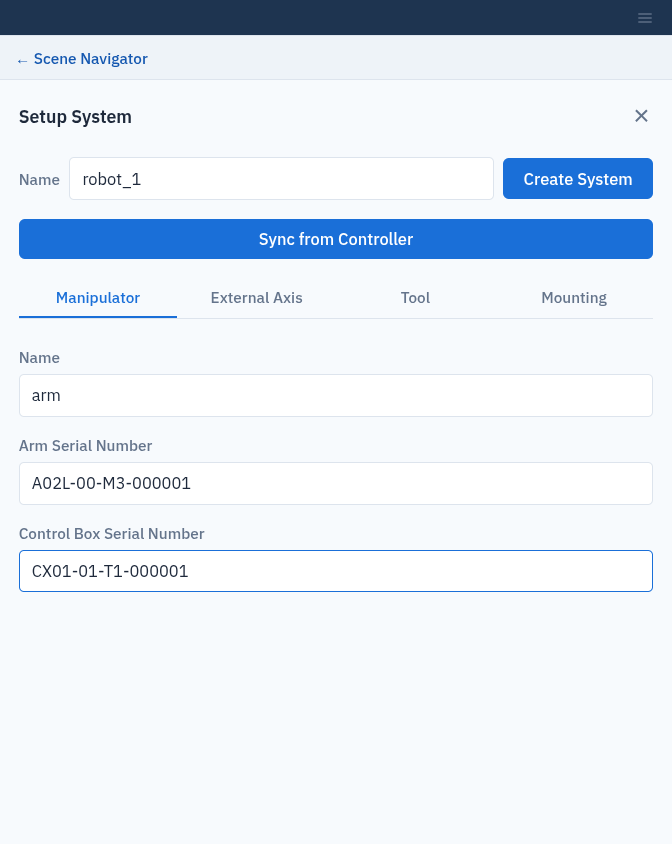
Setup System, Manipulator tab.
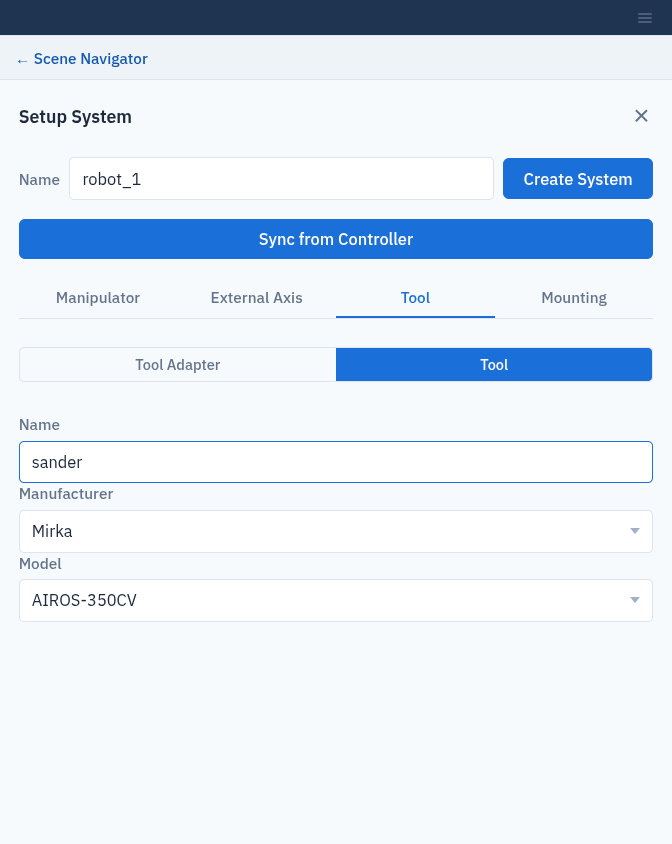
Choosing a sander from the catalogue on the Tool tab.
Sync from Controller
If the robot is switched on and reachable on the network, Composer Studio can read its configuration from the robot controller:
Enter the system Name.
Click Sync from Controller.
Enter the robot’s public serial number when asked (Please specify the public serial number of the robot.), for example
Rizon4-062065.
The form is filled in with the manipulator, tool and other settings reported by the controller. Check them, then click Create System. Syncing reads the controller only; it does not enable or move the robot.
Edit or delete a system
Select the system in the tree and open its Setup tab. Change the fields and click Modify System, or click Delete System.
Keep the system Name unchanged when you modify a system. Modify System with a new Name does not rename the system: it creates a second system with the new name and leaves the old one in place. To rename a system, delete it and create it again.
Important
Modify System removes all targets and trajectories of that system. Composer Studio asks you to confirm first. Saved poses no longer match the modified robot, so they cannot be kept.
System details
Selecting a system opens these tabs:
Tab |
Shows |
|---|---|
Information |
The manipulator’s name, Serial No. and DoF, the external axis, and tables of joint limits: in degrees, or in metres for a linear external axis such as a rail. |
Setup |
The edit form described above. |
Position |
Joint sliders and a Cartesian pose editor. Available once the system is connected to a real robot. Preview only: it does not move the live robot yet. See Connect to a Real Robot. |
Operations |
Connect to System. See Connect to a Real Robot. |
The dot next to a system in the tree shows whether it is connected.
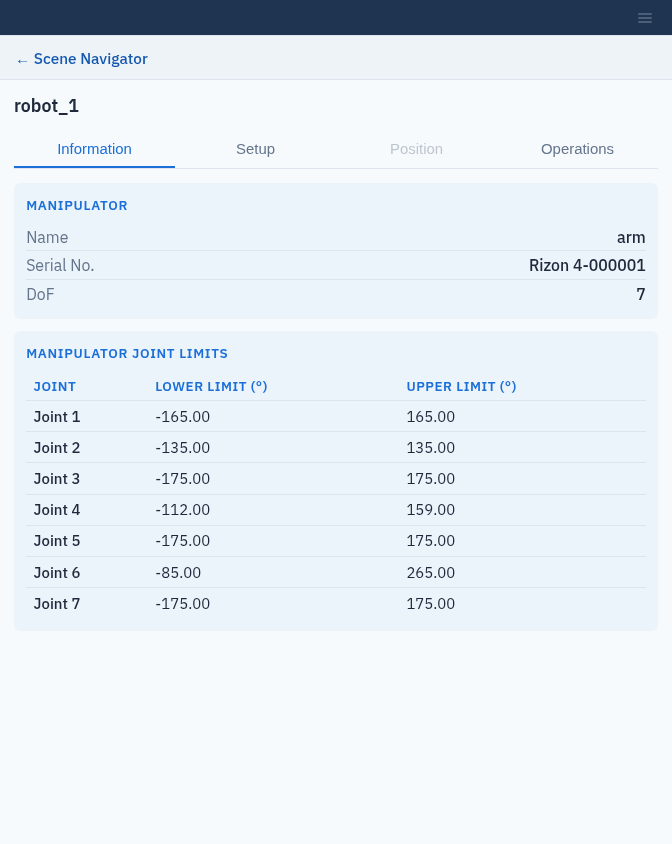
The Information tab of a system.