Live Scene Events
Other programs can change the workcell while Composer Studio is open: your own
PDK application, the pdk-scene tool, or a second Composer Studio window.
Live Scene Events makes the viewport follow those changes as they happen,
for example to watch an application add and move parts.
Turn it on
Click Live Scene Events Off (red) in the header bar and confirm. The button turns green and reads Live Scene Events On. Composer Studio reloads the current workcell, then follows changes from the server.
While it is on, the editor is read-only: open forms and details close, and the tree, its + and × buttons and the ☰ menu are disabled. You can still orbit and zoom the viewport. Workcell Setup stays available, so Load and Delete still work.
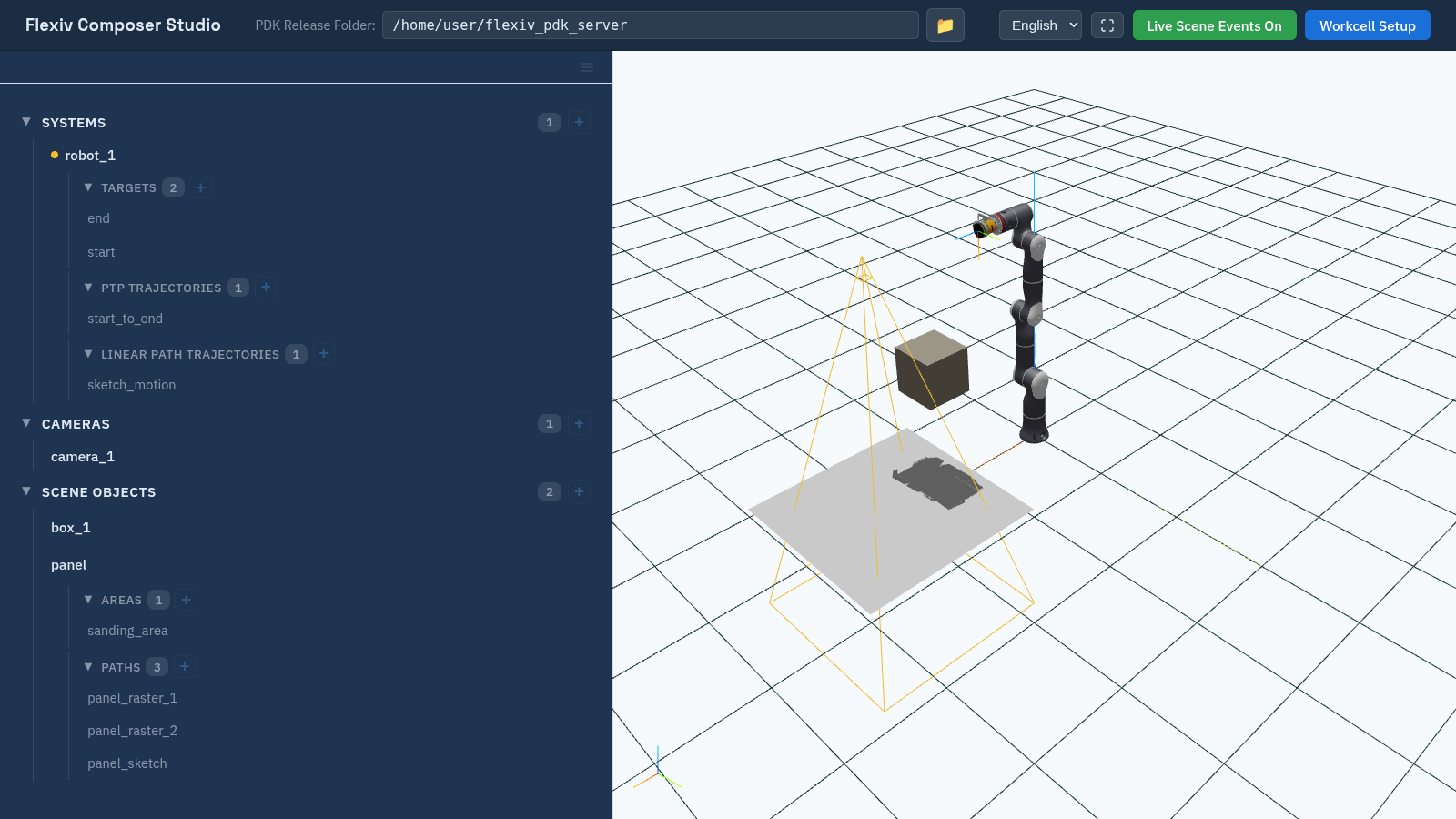
Live scene events on: the editor is read-only.
Click Live Scene Events On to turn it off and edit again.
What is followed
Change on the server |
Shown in Composer Studio |
|---|---|
Scene object added, removed, renamed or moved |
Immediately. |
Workcell reloaded or replaced |
Composer Studio reloads the workcell it is showing. If another program loads a different workcell, Composer Studio makes its own workcell active again instead of following the new one. |
Systems, cameras, paths, targets, trajectories |
Not followed. Load the workcell again to see them (Workcells). |
If the connection to the server drops, Composer Studio reconnects automatically after about two seconds.
Note
Added scene objects are always read as .obj meshes, so an object added
with an .stl mesh is not drawn. Their parent is also ignored: an object
attached to a flange is drawn as if attached to world. Load the
workcell again to see them correctly.
Example
With live scene events on, move a scene object from a terminal and watch it move in the viewport. List the objects, then move one by name to a position in metres:
pdk-scene object list
pdk-scene object move <name> --pos 0.5 0.1 0.3
pdk-scene object --help