Tool Paths
A path is a sequence of tool poses on the surface of a mesh object, such as the line a sanding tool follows. Each pose has a position on the surface and an orientation. A path on its own is not robot motion; turn it into motion with a linear path trajectory (Linear Path Trajectories).
Note
Creating a path requires the surface_finish license
(Activate Licenses).
Create a path
In the tree, expand a mesh scene object and click + next to Paths. The object is isolated in the viewport. Enter a Name, build the path on one of the two tabs, and click Create Path.
Composer Studio saves the path as <object>_<name>: a path named pass1
on panel is saved as panel_pass1. Path names must not repeat a path or
trajectory name in the workcell. Composer Studio checks this only on the
Free sketch tab.
On the Free sketch tab, a path needs at least two waypoints. With fewer, Create Path shows Place at least 2 waypoints on the object to create a path. If the server rejects the request on either tab, for example for a missing license, Composer Studio shows Could not create the path: followed by the reason. In both cases the form stays open with your settings and waypoints, so you can fix the problem and click Create Path again.
Free sketch tab
Draw the path by hand.
Double-click on the object to place waypoints, in order. Blue markers show the waypoints, and the generated path between them is drawn along the surface.
Adjust the Parameters:
Field
Default
Meaning
Point spacing (m)
0.01
Distance between poses along the path.
Blending radius (m)
0.002
Radius used to round the corners at waypoints.
Choose the Orientation (see below).
Click Create Path.
At least two waypoints are needed. Click Clear waypoints to start again.
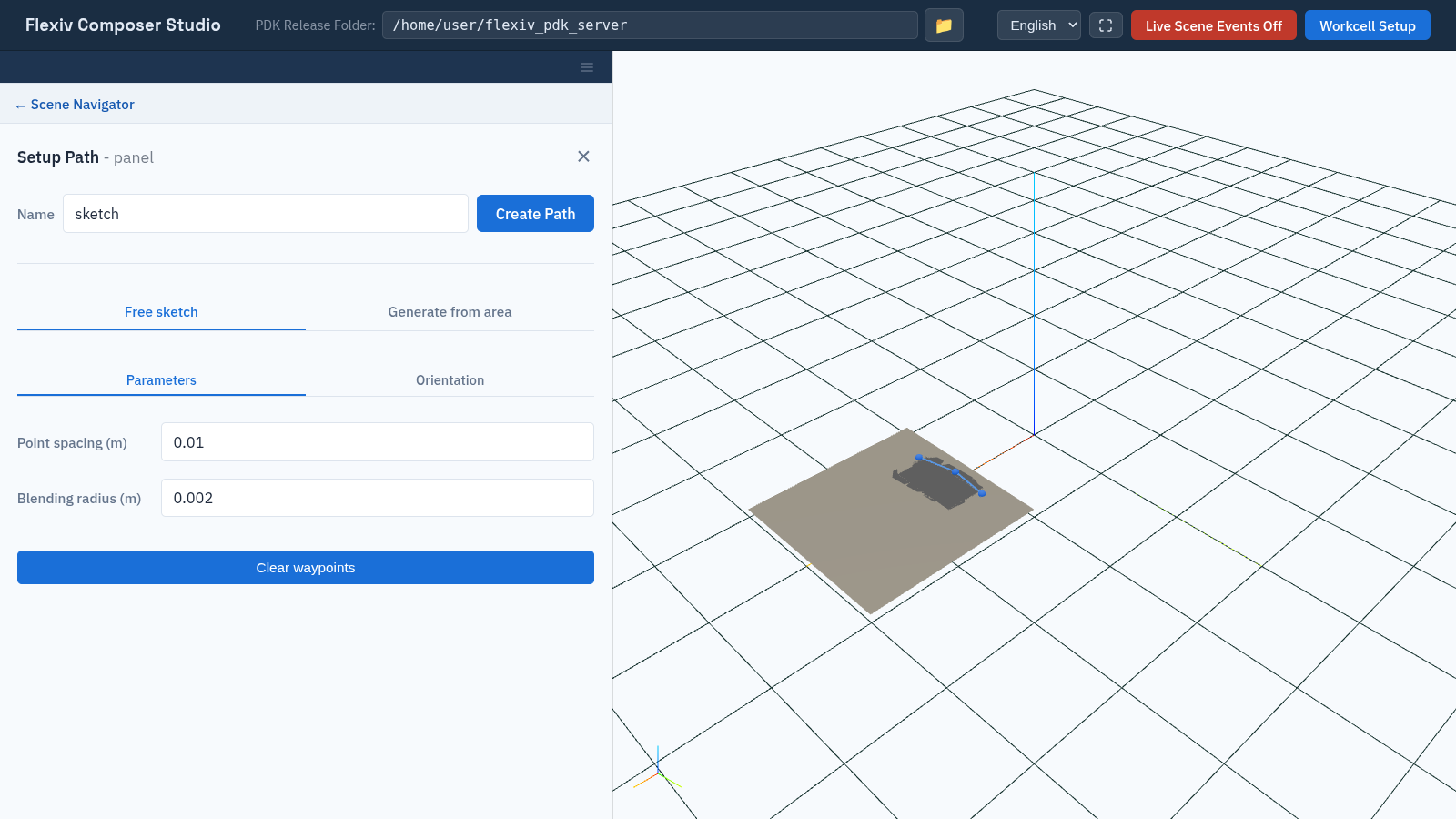
Sketching a path with three waypoints.
Generate from area tab
Generate a raster (zig-zag) path that covers an area (Areas).
Choose the Area. It is highlighted in the viewport.
Adjust the Parameters:
Field
Default
Meaning
Fixed spacing (m)
0.01
Distance between poses along each line.
Blending radius (m)
0.002
Radius used to round the turns.
Border offset (m)
0.0
Distance to keep from the edge of the area.
Raster line spacing (m)
0.05
Distance between neighbouring raster lines.
Joining threshold (m)
0.1
Raster segments whose ends are closer than this are joined into one pass. Must be at least twice the raster line spacing; Composer Studio raises it if it is smaller.
Raster direction
Principal angle
Principal angle: lines follow the area’s principal direction, turned by Rotation angle (deg) (−90 to 90). Specified direction: lines follow the X, Y, Z direction you enter in the world frame, projected onto the mesh.
Choose the Orientation (see below).
Click Visualize Toolpath to preview the path. The preview is not saved on the server, but its paths are listed under Paths until you create the path or close the form.
Click Create Path. One area can produce several paths, one per separate pass, each listed under Paths.
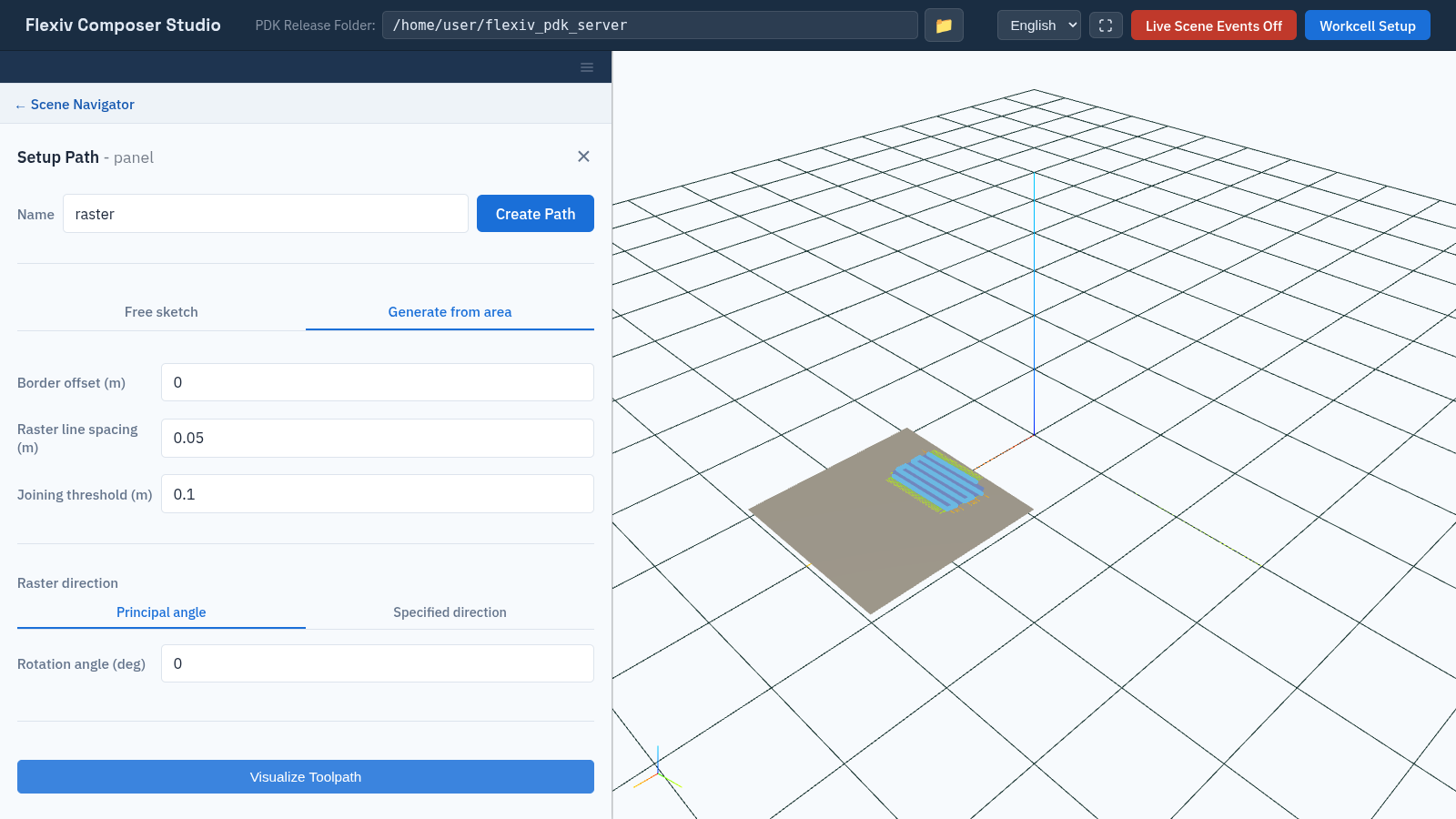
A raster path previewed with Visualize Toolpath.
Orientation
Orientation alignment sets which way the X axis of each pose points:
Align with initial direction (default): roughly along the direction from the first to the second waypoint, for every pose.
Align with previous waypoint: roughly along the path, following it as it turns.
Align with direction in world: roughly along the X, Y, Z direction you enter, in the world frame.
Rotate a path
Select a path in the tree and open Operations. Click Rotate Path Poses about its Z-axis, drag the slider (−180° to 180°) while watching the preview, and click Apply Changes. This turns every pose about its own Z axis, for example to clear a tool cable.
Selecting a path shows it in the viewport as a line with a small axes frame at each pose. To delete it, click × next to it in the tree.