Connect to a Real Robot
A system in the workcell can be connected to the real Flexiv robot it describes. While connected, the robot in the viewport follows the real robot’s joint angles and TCP pose.
Important
Connecting enables the robot. When you click Connect to System, Composer Studio clears any robot fault, checks the mounted tool, then enables the robot (releases the brakes and powers the motors), switches it to idle mode, and releases the external-axis lock. Before connecting:
make sure nobody is inside the robot’s workspace;
keep the emergency stop within reach;
follow all safety instructions in the documents shipped with the robot.
Composer Studio sends no motion commands in this release, but the robot stays enabled after connecting, and after you disconnect.
Before you connect
The robot and its control box are switched on and on the same network as this computer, with RDK remote mode enabled in the robot’s settings. The robot runs Flexiv software package v3.11.3, the version the bundled
flexivrdksupports.The system was set up with the robot’s serial number, for example with Sync from Controller (Systems).
If the system has a tool, the tool mounted on the real robot has the same name. Composer Studio compares the system’s tool Name with the name of the tool selected on the robot’s controller, and refuses to connect if they differ. This check runs before the robot is enabled, so a mismatch leaves the robot as it was. The manufacturer and model are not compared.
Connect
Select the system in the tree and open the Operations tab.
Click Connect to System. The button shows Connecting…, for up to about 10 seconds while the robot becomes operational.
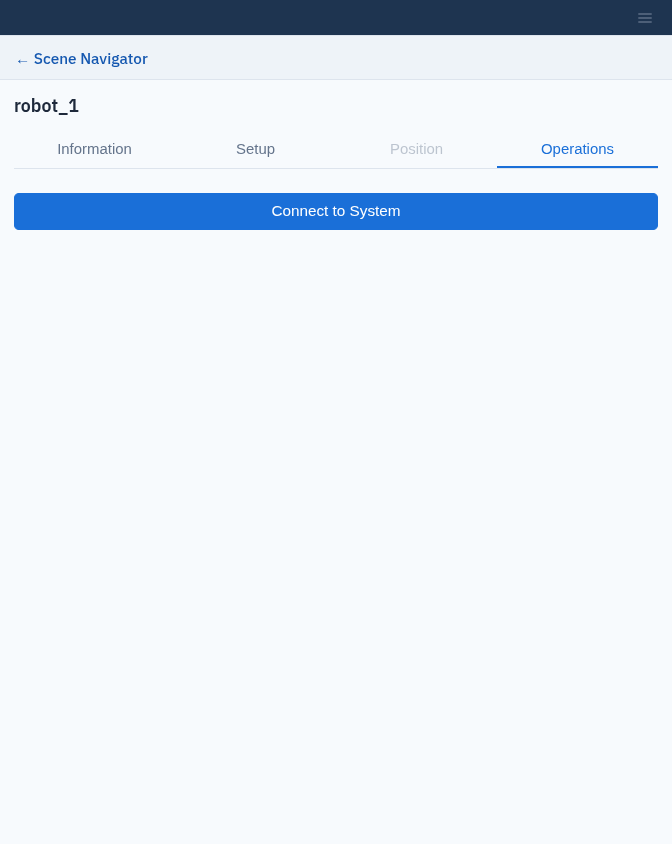
The Operations tab of a system.
When the connection succeeds:
the dot next to the system in the tree shows it is connected;
the robot in the viewport follows the real robot, updating about ten times a second;
a small axes frame marks the real TCP;
the Position tab becomes available.
If the connection fails, Composer Studio shows Failed to connect to system: followed by the reason:
Message |
What to do |
|---|---|
|
The robot could not be reached, refused the connection, or failed to switch to idle mode. Check its network, its serial number and that RDK remote mode is enabled. If the robot had already been enabled, Composer Studio stops it. |
|
Check the robot for the cause of the fault, clear it on the robot, then try again. The robot is not enabled. |
|
Check that the emergency stop is released and the robot is in remote mode. The robot has already been enabled at this point; Composer Studio stops it. |
|
Check the tool settings on the robot, then try again. The robot is not enabled. |
|
Select the mounted tool on the robot, or change the system’s tool Name to match it (Systems). The robot is not enabled. |
|
Set the system’s Arm Serial Number. |
Position tab
The Position tab has a Joint Space tab with joint sliders and a Cartesian Space tab with a TCP pose editor, as in Targets.
Note
Preview only — jogging the live robot is not yet wired up. The controls move the robot in the viewport only; the real robot does not move.
While you are editing a target or trajectory of a connected system, or one of them is selected, the viewport shows that pose instead of the live robot.
Disconnect
While a system is connected, its Operations tab shows Disconnect from System in place of Connect to System. Click it to close the connection: the dot in the tree shows the system as disconnected, the robot in the viewport stops following the real robot, the TCP axes frame disappears and the Position tab is no longer available.
Composer Studio also disconnects every robot whenever the workcell is loaded, including the reloads that live scene events make (Live Scene Events), and a system’s robot when you delete the system.
Disconnecting does not move the robot or change its state: it stays enabled and in idle mode. Disable the robot from its own controls when you are finished.